Useful Examples of Linux ‘sort’ Command
Sort is a Linux program used for printing lines of input text files and concatenation of all files in sorted order. Sort command takes blank space as field separator and entire Input file as sort key. It is important to notice that sort command don’t actually sort the files but only print the sorted output, until your redirect the output.
This article aims at deep insight of Linux ‘sort‘ command with 14 useful practical examples that will show you how to use sort command in Linux.
1. First we will be creating a text file (tecmint.txt) to execute ‘sort‘ command examples. Our working directory is ‘/home/$USER/Desktop/tecmint.
The option ‘-e‘ in the below command enables interpretion of backslash and /n tells echo to write each string to a new line.

2. Before we start with ‘sort‘ lets have a look at the contents of the file and the way it look.

3. Now sort the content of the file using following command.

Note: The above command don’t actually sort the contents of text file but only show the sorted output on terminal.
4. Sort the contents of the file ‘tecmint.txt‘ and write it to a file called (sorted.txt) and verify the content by usingcat command.

5. Now sort the contents of text file ‘tecmint.txt‘ in reverse order by using ‘-r‘ switch and redirect output to a file ‘reversesorted.txt‘. Also check the content listing of the newly created file.

6. We are going a create a new file (lsl.txt) at the same location for detailed examples and populate it using the output of ‘ls -l‘ for your home directory.

Now will see examples to sort the contents on the basis of other field and not the default initial characters.
7. Sort the contents of file ‘lsl.txt‘ on the basis of 2nd column (which represents number of symbolic links).
Note: The ‘-n‘ option in the above example sort the contents numerically. Option ‘-n‘ must be used when we wanted to sort a file on the basis of a column which contains numerical values.

8. Sort the contents of file ‘lsl.txt‘ on the basis of 9th column (which is the name of the files and folders and is non-numeric).
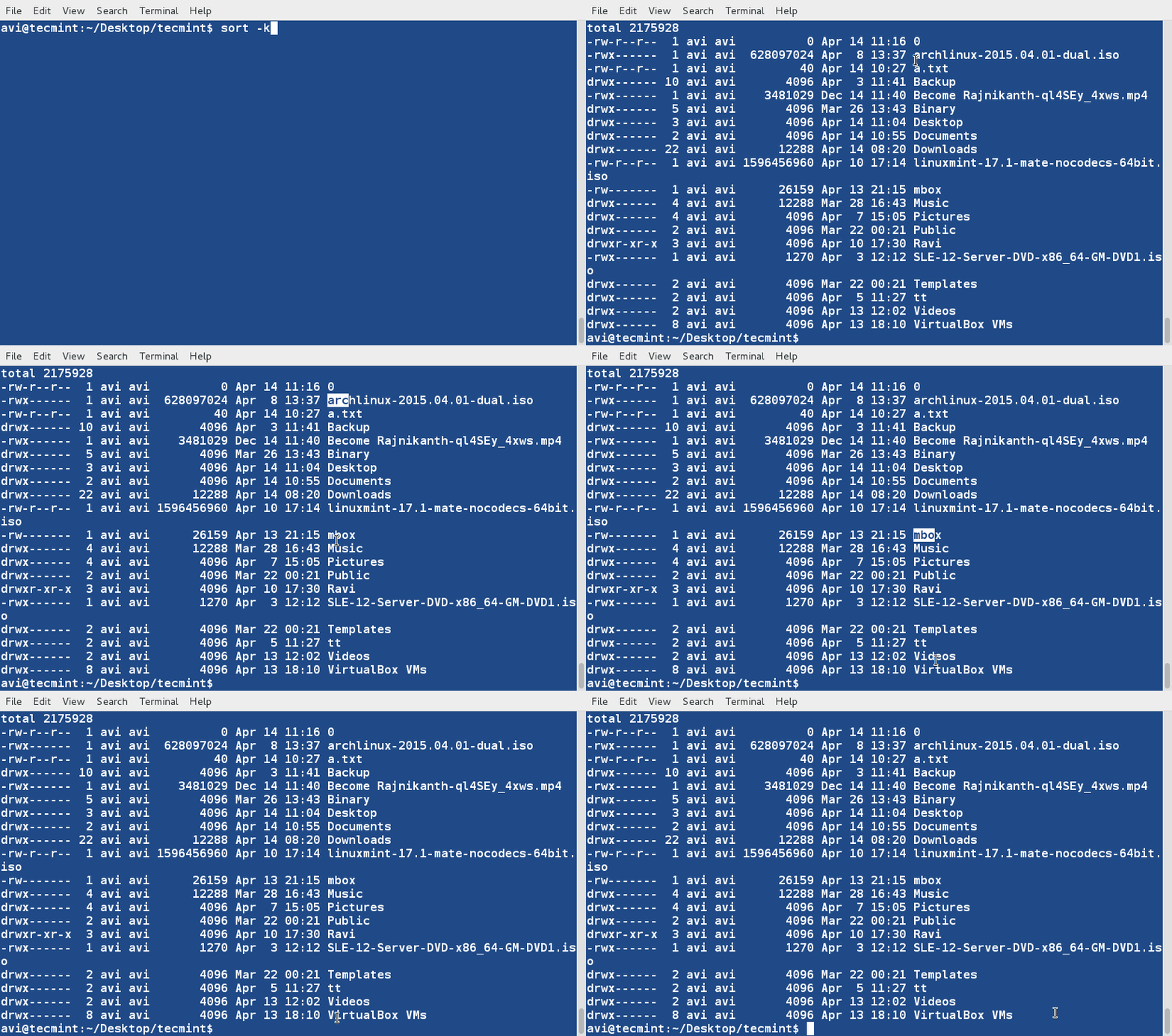
9. It is not always essential to run sort command on a file. We can pipeline it directly on the terminal with actual command.

10. Sort and remove duplicates from the text file tecmint.txt. Check if the duplicate has been removed or not.

Rules so far (what we have observed):
- Lines starting with numbers are preferred in the list and lies at the top until otherwise specified (-r).
- Lines starting with lowercase letters are preferred in the list and lies at the top until otherwise specified (-r).
- Contents are listed on the basis of occurrence of alphabets in dictionary until otherwise specified (-r).
- Sort command by default treat each line as string and then sort it depending upon dictionary occurrence of alphabets (Numeric preferred; see rule – 1) until otherwise specified.
11. Create a third file ‘lsla.txt‘ at the current location and populate it with the output of ‘ls -lA‘ command.

Those having understanding of ‘ls‘ command knows that ‘ls -lA’=’ls -l‘ + Hidden files. So most of the contents on these two files would be same.
12. Sort the contents of two files on standard output in one go.

Notice the repetition of files and folders.
13. Now we can see how to sort, merge and remove duplicates from these two files.

Notice that duplicates has been omitted from the output. Also, you can write the output to a new file by redirecting the output to a file.
14. We may also sort the contents of a file or the output based upon more than one column. Sort the output of ‘ls -l‘ command on the basis of field 2,5 (Numeric) and 9 (Non-Numeric).
14. We may also sort the contents of a file or the output based upon more than one column. Sort the output of ‘ls -l‘ command on the basis of field 2,5 (Numeric) and 9 (Non-Numeric).

That’s all for now. In the next article we will cover a few more examples of ‘sort‘ command in detail for you. Till then stay tuned and connected to Tecmint. Keep sharing. Keep commenting. Like and share us and help us get spread.
Before we continue further, create a text file ‘month.txt‘ and populate it with the data as given below.

15. Sort the file ‘month.txt‘ on the basis of month order by using switch ‘M‘ (–month-sort).
Important: Note that ‘sort‘ command needs at least 3 characters to consider month name.

16. Sort the data that is in human readable format say 1K, 2M, 3G, 2T, where K,M,G,T represents Kilo, Mega, Giga, Tera.

17. In the last article we have created a file ‘sorted.txt‘ in example number 4 and another text file ‘lsl.txt‘ in example number 6. We know ‘sorted.txt‘ is already sorted while ‘lsl.txt‘ is not. Lets check both the files are sorted or not using sort command.

If it returns 0, means that the file is sorted and there is no conflict.

Reports Disorder. Conflict..
18. If the delimiter (separator) between words are space, sort command automatically interpret anything after horizontal space as new word. What if the delimiter is not space?
Consider a text file, the contents of which are separated by anything other than space such as ‘|’ or ‘\’ or ‘+’ or ‘.’ or….
Create a text file where contents are separated by +. Use ‘cat‘ to check the contents of file.

Now sort this file on the basis of 1st field which is numerical.

And second on the basis of 4th field which is non numeric.

If the delimiter is Tab you may use $’\t’ in place of ‘+’, as shown in the above example.
19. Sort the contents of ‘ls -l‘ command for your home directory on the basis of 5th column which represents the ‘amount of data‘ in Random order.

Every time you run the above piece of script you are likely to get a different result since the result is generated randomly.
As clear from the Rule number – 2 from the last article, sort command prefer line starting with lowercase characters over uppercase characters. Also check example 3 in last article, where string ‘laptop‘ appears before string ‘LAPTOP‘.
20. How to override the default sorting preference? before we are able to override the default sorting preference we need to export the environment variable LC_ALL to c. To do this run the below code on your Command Line Prompt.
And then sort the text file ‘tecmint.txt‘ overriding the default sort preference.

Override Sorting Preferences
Don’t forget to compare the output with the one you achieved in example 3 and also you can use option ‘-f‘ aka ‘–ignore-case‘ to get much organized output.

21. How about running ‘sort‘ on two input files and join them in one go!
Lets create two text file namely ‘file1.txt‘ and ‘file2.txt‘ and populate it with some data. Here we are populating ‘file1.txt‘ with numbers as below. Also used ‘cat‘ command to check the content of file.

And populate second file ‘file2.txt‘ with some data as.

Now sort and join the output of both the files.

That’s all for now. Keep Connected. Keep to Tecmint. Please Provide us with your valuable feedback in the comments below. Like and share us and help us get spread


No comments: